
How to Find the Right WordPress Theme: Top Tips
Not sure which WordPress theme is right for your site? These top tips help you find the perfect theme based on your niche, design needs, and performance requirements.

Not sure which WordPress theme is right for your site? These top tips help you find the perfect theme based on your niche, design needs, and performance requirements.
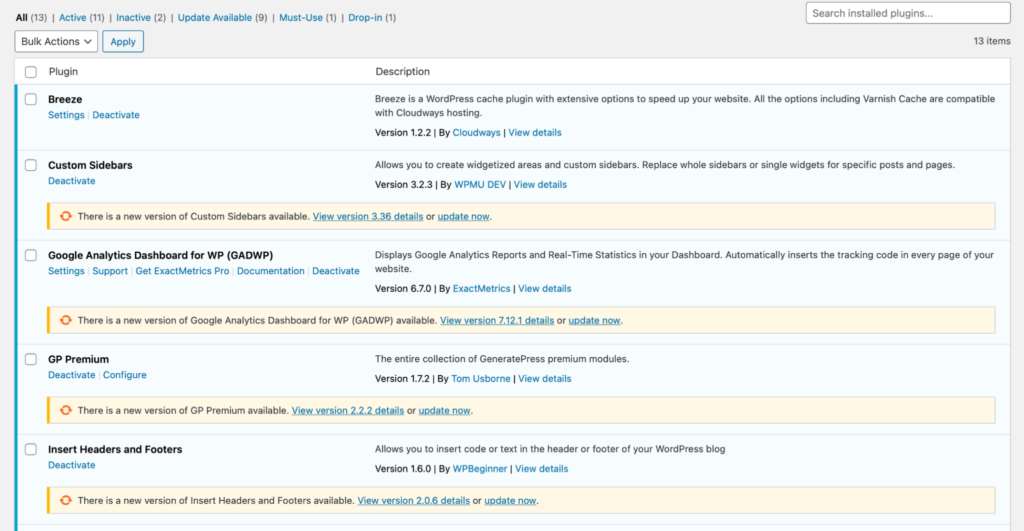
A WordPress update typically takes a few minutes to complete, depending on the size and complexity of the update. WordPress updates are generally quick and straightforward, taking just a few minutes to complete. However, the exact duration can vary depending on factors such as the size and complexity of the update. It’s important to note
How Long Does WordPress Update Take: Quick Insights Read More »
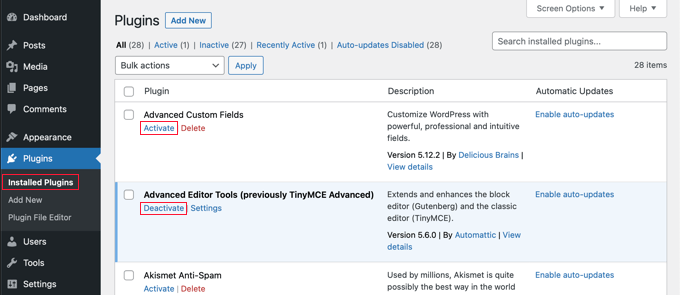
A WordPress plugin works by adding specific functionalities and features to a WordPress website, enhancing its performance and customization options. These plugins are small software programs that integrate seamlessly with the WordPress platform, allowing users to easily install, activate, and configure them to suit their needs. With thousands of plugins available in the WordPress plugin
How WordPress Plugin Works: Unleash Your Site’s Potential Read More »
To optimize WordPress for better performance, use a lightweight theme and install a caching plugin. Regularly update plugins and themes. Optimizing WordPress is crucial for faster load times and improved user experience. A well-performing site can boost search engine rankings and reduce bounce rates. Start by choosing a lightweight theme that minimizes unnecessary code. Install
How to Optimize WordPress for Better Performance: Ultimate Guide Read More »

WordPress costs vary depending on the hosting provider and the specific plan you choose, but generally, the monthly cost for a basic WordPress website ranges from $4 to $25 per month. WordPress is a popular content management system (CMS) that allows users to create and manage websites without the need for coding knowledge. Whether you
How Much Does WordPress Cost Per Month? Unveil Savings! Read More »
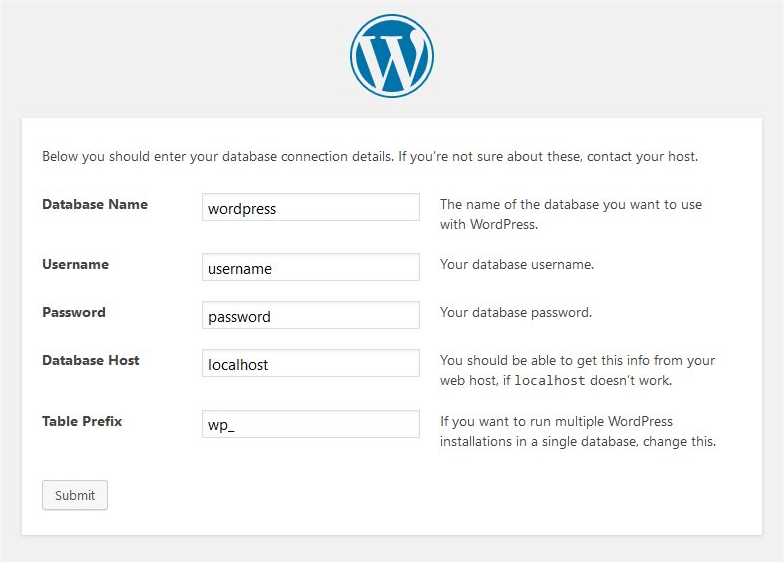
To install WordPress step by step, download the latest version from wordpress.org, unzip the file, and upload it to the public_html directory. Create a MySQL database and user, configure the wp-config.php file, and run the WordPress install. Before installing WordPress, make sure to buy a domain name, purchase a web hosting plan, and download WordPress.
How to Install WordPress Step by Step: Quick & Easy Guide Read More »
WordPress users often face common errors that can disrupt their website’s functionality. Fixing these issues is crucial for maintaining site performance. WordPress is a popular content management system, but it isn’t without its quirks. Many users encounter a range of common errors that can be frustrating and time-consuming to resolve. These issues can range from
50 Most Common WordPress Errors: Quick Fixes Revealed! Read More »

50 Common WordPress Problems Answered 1. **Slow Loading Speed:** Optimize images and use caching plugins. Introduction WordPress is a powerful and versatile platform, but it’s not without its challenges. Whether you are a beginner or a seasoned user, encountering issues can be frustrating. This blog aims to provide quick, precise solutions to 50 common WordPress
50 Common WordPress Problems: Quick Fixes & Tips Read More »
To fix a WordPress Internal Server Error, deactivate all plugins and switch to a default theme. If the error persists, increase PHP memory limit. An Internal Server Error on WordPress can be frustrating and confusing. It often appears without a clear reason, making troubleshooting difficult. Common causes include plugin conflicts, theme issues, and PHP memory
How to Fix WordPress Internal Server Error: Quick Solutions Read More »
WordPress Maintenance Mode temporarily disables access to your site during updates or changes. It ensures visitors see a maintenance message. WordPress Maintenance Mode is crucial for managing updates, theme changes, or plugin installations without disrupting user experience. This mode displays a customizable message to visitors, informing them the site is temporarily unavailable. Activating maintenance mode
WordPress Maintenance Mode: Essential Tips for Downtime Read More »